Scan it, and it’s on your PC
From continuous scanning of hundreds of codes to stocktakes against an expected list and live sync to a PC browser — here’s every feature, one by one, with real screens.
All features at a glance
Scan
Scan many codes fast, and only the ones you want.
Most used on the job
Scan
Continuous scan
Opening a result screen after every scan makes hundreds of scans slow. In continuous mode results flash at the bottom, and you save everything at once when you’re done.
- Tap “Continuous” at the bottom of the scan screen
- Keep scanning
- Tap “Finish” to save
Work
Stocktake
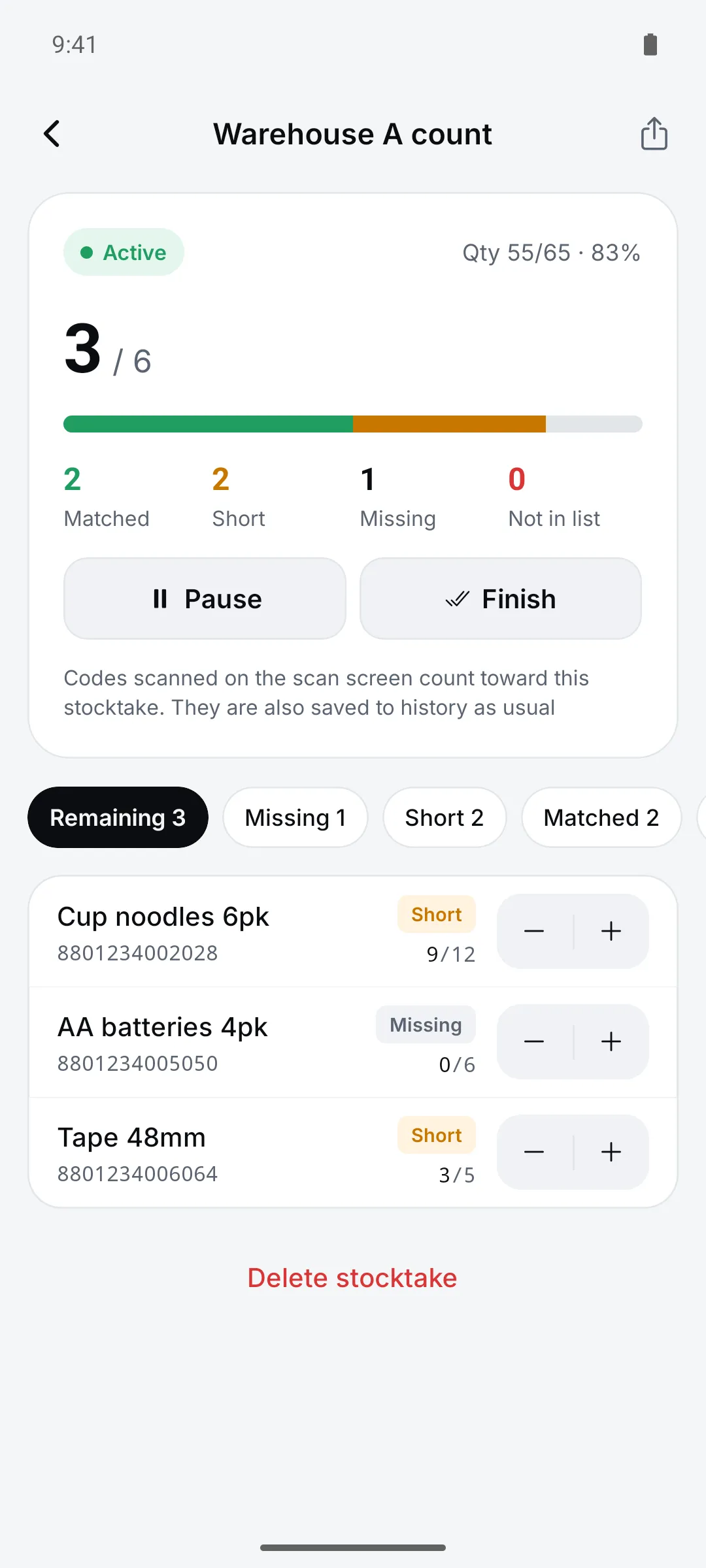
Copy your item list from Excel, paste it and start scanning. Every scan fills in the count, and short or extra items show up right away.
- Open Settings > Work tools > “Stocktake” and tap “New stocktake”
- Paste the expected list
- Scan, review, share the report
Work
Live PC sync
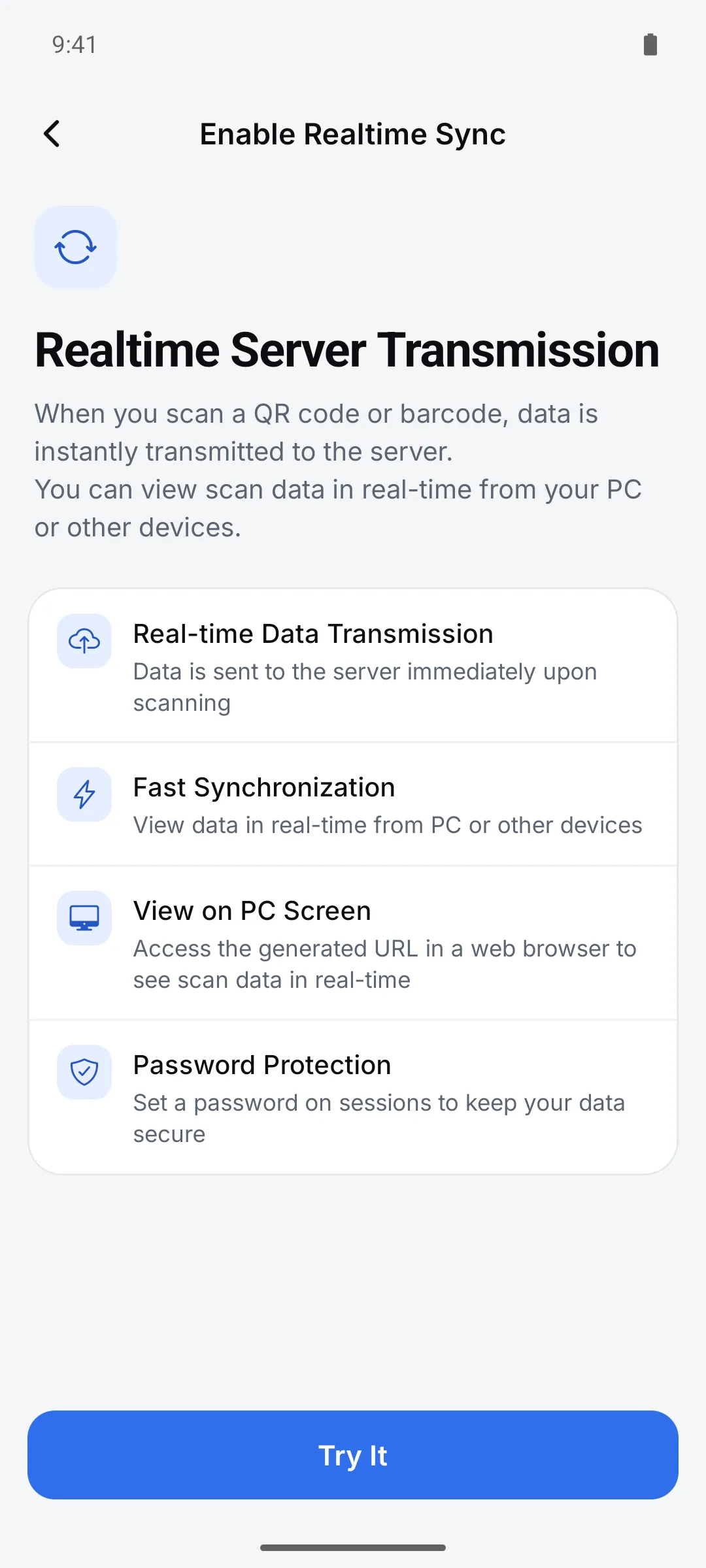
Open a scanview.app session address on your PC and scan with your phone. Each code is added to the table right away. Nothing to install.
- Open Settings > Work tools > “Live PC sync”
- Turn on realtime sync and create an address
- Open the session address on your PC and scan
Web
Web session screen
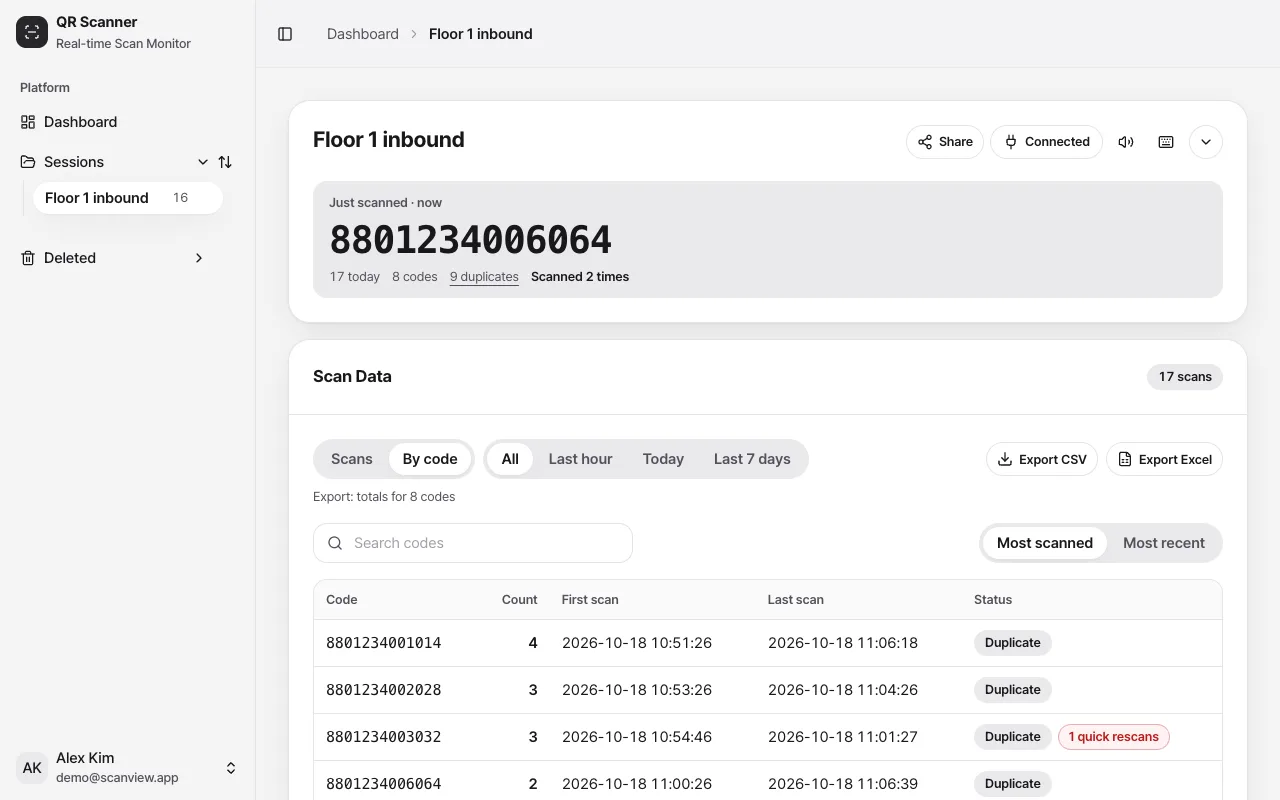
The scanview.app session screen is built for a big monitor. The latest code shows large, and you can see at a glance how many times each code was scanned.
- Check the latest scan at a glance
- Switch to “By code”
- Export what you see
Who uses it
Logistics Centers
Inbound/outbound barcode scanning, inventory checks, picking list verification
Warehouse Managers
Inventory location tracking, location barcode scanning
Retail Stores
Product receiving, price tag checking, inventory surveys
Manufacturing
Material tracking, production line monitoring, quality control
FAQ
- Does it work offline?
- Scanning, history, stocktakes and code creation work without internet. Only live PC sync and cloud backup need a connection.
- Where are my scans stored?
- On this device by default. Only when live PC sync is on are the code value and scan time sent to the scanview.app server.
- Which languages are supported?
- Korean, English, Japanese, Chinese and Spanish.