Work
Stocktake
Copy your item list from Excel, paste it and start scanning. Every scan fills in the count, and short or extra items show up right away.
How to use it
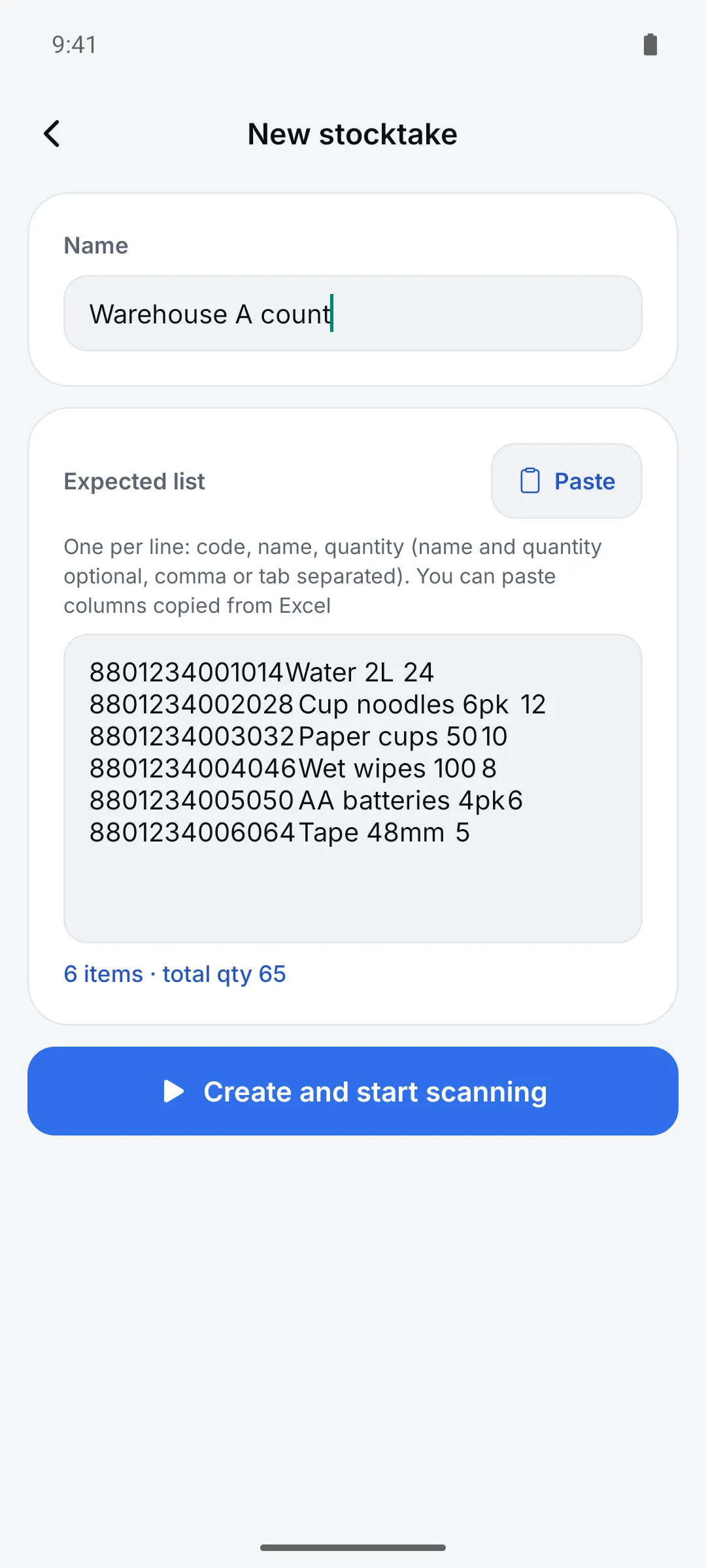
Open Settings > Work tools > “Stocktake” and tap “New stocktake”
Give the stocktake a name.
Paste the expected list
One line per item: “code, name, quantity”, separated by commas or tabs. Columns copied from Excel work too. Then tap “Create and start scanning”.
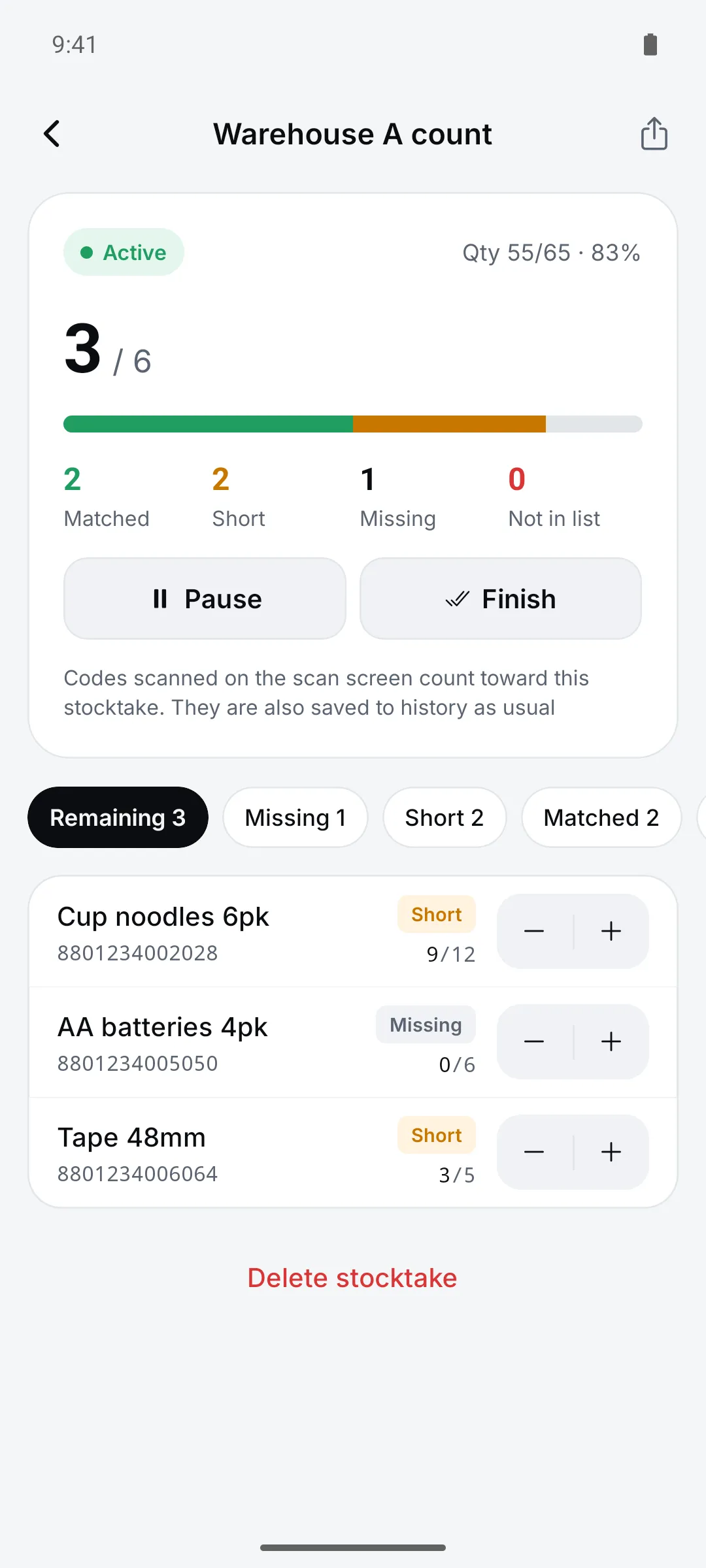
Scan, review, share the report
Fix counts with −/+ on the detail screen. Share the “Variance report” as CSV.
Settings
| Setting | Options · default |
|---|---|
| Item status | Missing / Short / Matched / Over / Not in list |
| Stocktake status | Paused / Counting / Finished |
| Same item when | The code matches, the GS1 GTIN matches, or the main label field matches |
Good to know
- Stocktakes are stored on this device only.
- Add the expected list by pasting or typing. Importing a file isn’t available yet.
- Scans taken during a stocktake are also saved to history as usual.
- Variance report CSV columns: code, name, expected, scanned, difference, status
FAQ
- Do I scan the same item several times?
- Yes — the number of scans becomes the count. If you over-scan, fix it with −/+ on the detail screen.
- What if I scan something that isn’t on the list?
- It’s listed separately as “Not in list” and appears in the report too.