Work
Export & backup
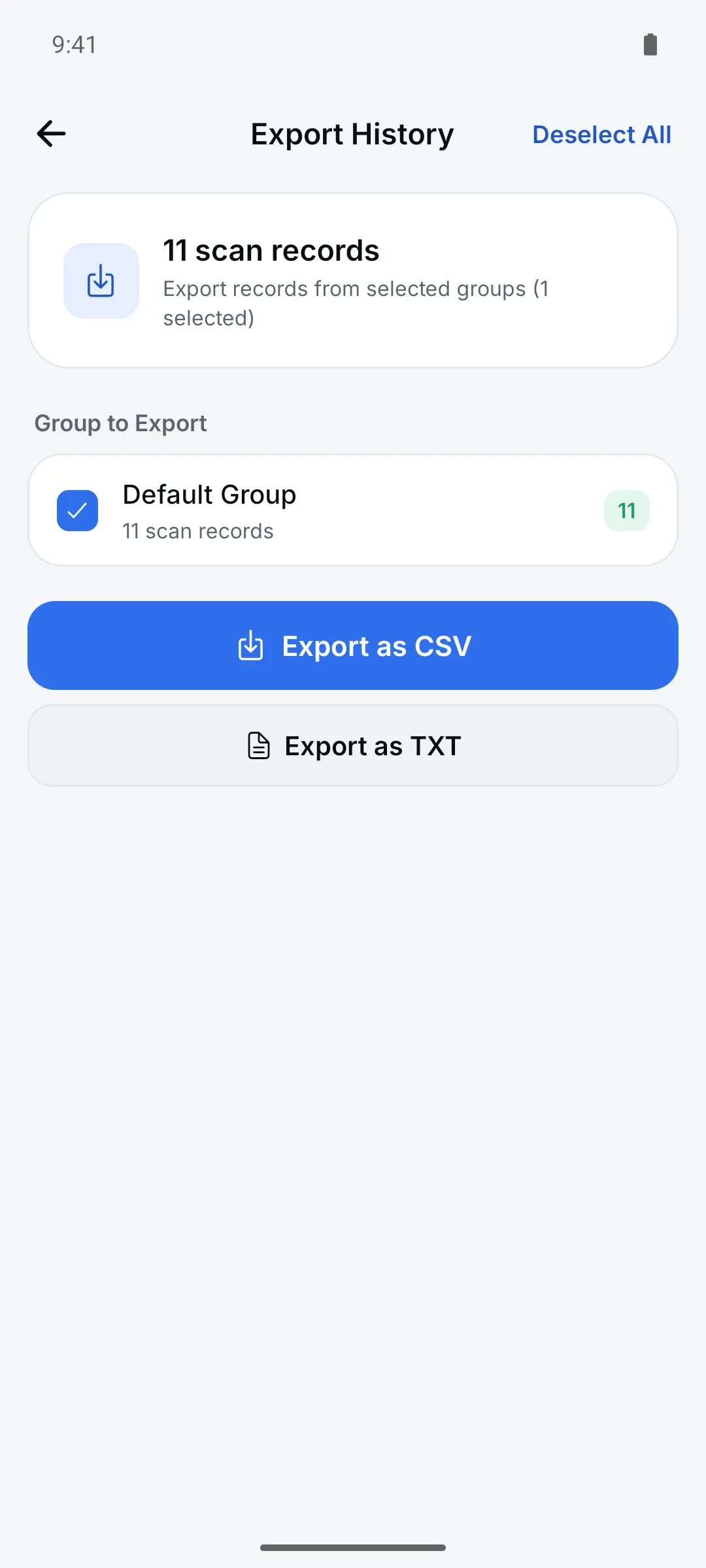
Pick groups and export a CSV that opens straight in Excel. Quantity, location, memo and GS1 columns are added when that data exists.
How to use it
Open Settings > Data > “Export History”
Pick groups, or tap Select All.
Tap “Export as CSV” or “Export as TXT”
Save it from the share sheet, or send it by email or chat.
Use backup when you switch phones
Back up to iCloud (iPhone) or Google Drive under Settings > Data, then restore on the new phone.
Settings
| Setting | Options · default |
|---|---|
| Export formats | CSV / TXT |
| CSV columns | Group, Code, Scan Date, Duplicate Count (+ location, quantity, memo, GS1 and label fields when present) |
| Backup | iCloud auto sync (iPhone) / Google Drive |
Good to know
- Restoring overwrites the data on this phone and takes effect after restarting the app.
- Scan photos and your app lock PIN aren’t included in backups.
- For Excel (.xlsx) files, export from the session screen on scanview.app.