Organize
Auto rules
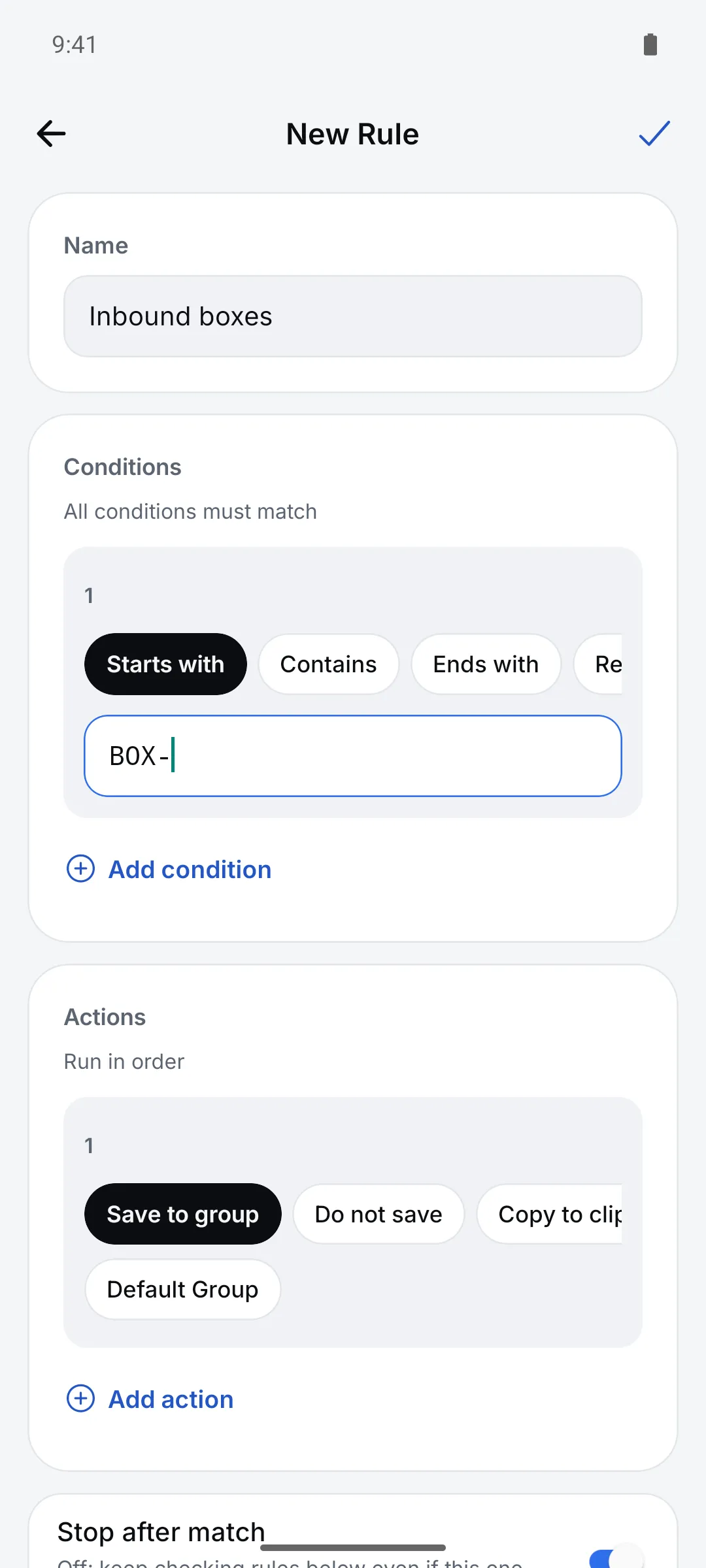
Set up a rule like “starts with BOX- → save to the Inbound group” and you won’t have to switch groups while scanning.
How to use it
Open Settings > Work tools > “Scan rules” and tap “Add rule”
Rules are checked from top to bottom.
Add conditions and actions
All conditions must match; actions run in the order listed.
Test with a value, then save
Enter a real code value to see whether the rule matches.
Settings
| Setting | Options · default |
|---|---|
| Conditions | Starts with / Contains / Ends with / Regex / Code type / Label category / Label field comparison |
| Actions | Save to group / Don’t save / Copy to clipboard / Open or send URL / Set as current location / Vibrate |
| Stop checking rules below | On / Off |
Good to know
- URL actions support placeholders like {code}, {field1} and {group}. URLs must start with http:// or https://.
- “Set as current location” isn’t GPS — scan a shelf code and the following scans get that location.
- Rules are stored on this device.