Work
Live PC sync
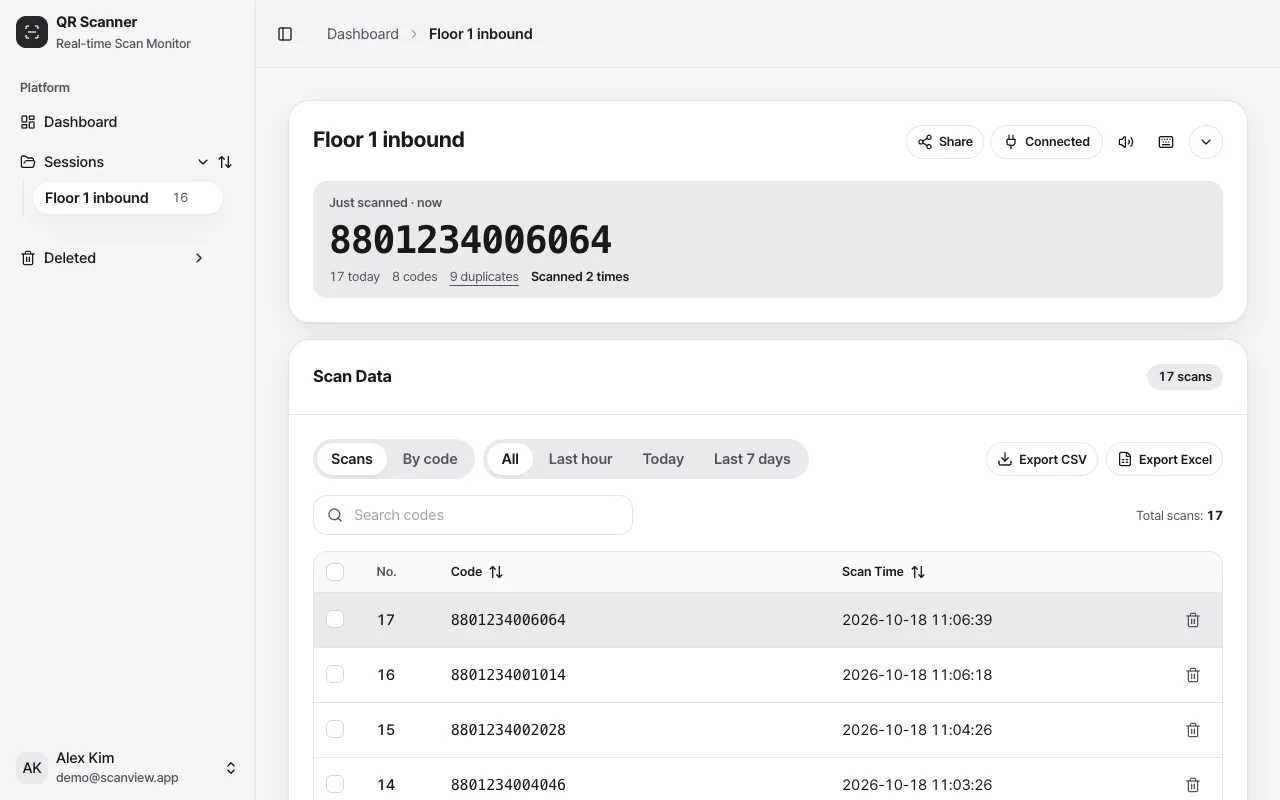
Open a scanview.app session address on your PC and scan with your phone. Each code is added to the table right away. Nothing to install.
How to use it
Open Settings > Work tools > “Live PC sync”
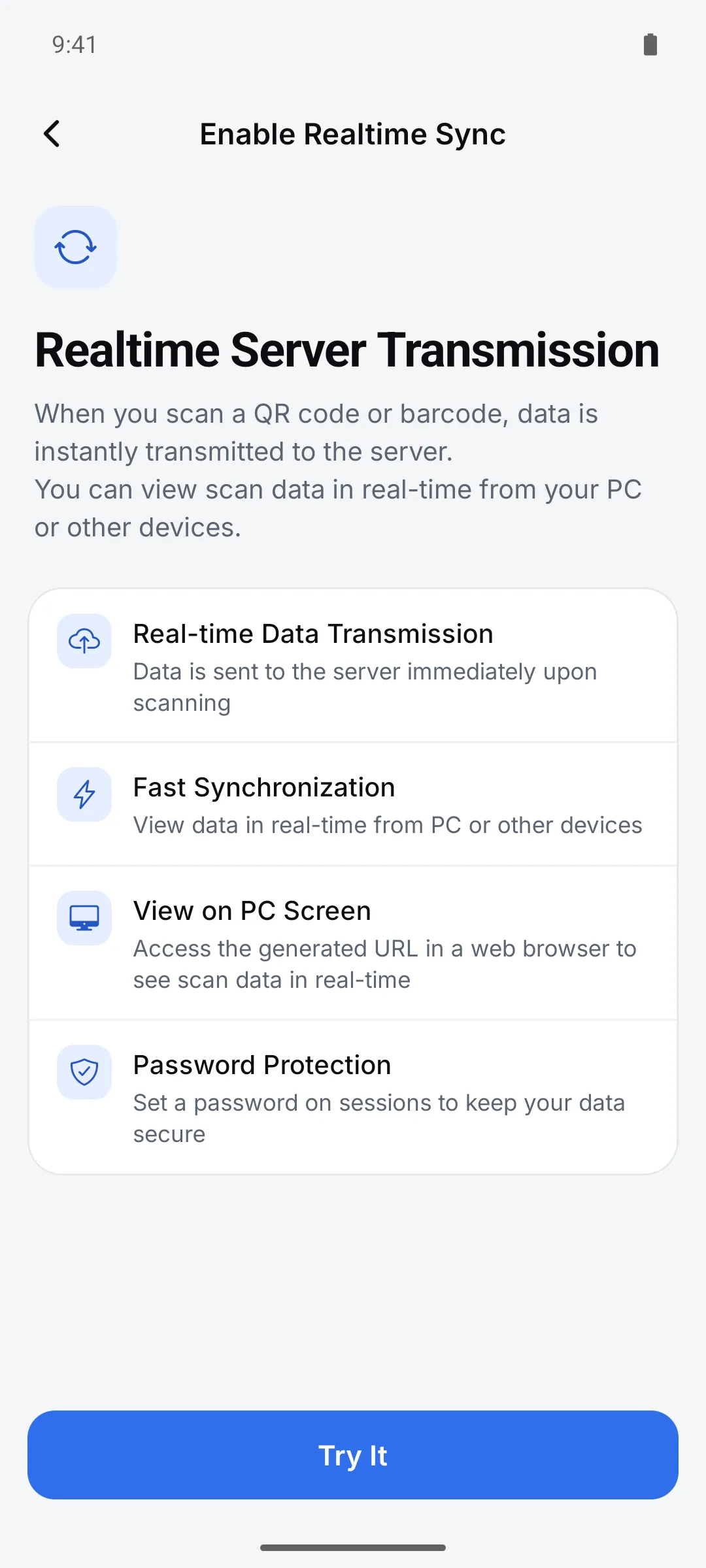
An intro screen appears the first time. You need to sign in.
Turn on realtime sync and create an address
Name the session and, if you like, make it private or add a password.
Open the session address on your PC and scan
Open scanview.app/session/<session ID> and scans appear as you take them.
Settings
| Setting | Options · default |
|---|---|
| Who can view | Anyone with the link / Password / Only me (changed on the web) |
| What’s sent | The code value and scan time |
Good to know
- Scans are sent in Single mode only. Sync turns off in Continuous and Multiple modes.
- Failed sends are retried up to three times. If they still fail, the scan stays in device history but isn’t resent to the PC.
- Deleted sessions are permanently removed from the trash after 30 days.
FAQ
- Do I need to install anything on the PC?
- No. Just open the session address in a browser like Chrome or Edge.
- Can other people see it?
- If the session is public, anyone with the address can view it. Switch to a password or Only me under “Share” on the web.